Prerequisite
- Download Requestly Desktop app
- You will also need your browser stack access key.
- Go to your browser stack account’s settings page - https://www.browserstack.com/accounts/settings
- Under the product section you should see an
Access Keyunder theLocal Testingsection
Setup BrowserStackLocal
- Setup BrowserStack Local
- BrowserStack Local Binary
- Download the BrowserStackLocal App
- Start the Local App
- Open the Local dashboard at http://localhost:45454/
-
Under Tunnel Settings, set the ip and port as shown in the Requestly dashboard
.png?fit=max&auto=format&n=EH6_41JFqLCl50m3&q=85&s=a3d30b0bfc4ec25e75f66cd641d302c4)
-
Enable the
Force Localoption..png?fit=max&auto=format&n=EH6_41JFqLCl50m3&q=85&s=a1d1991e59384590d330124df41f39d4)
-
Click
Show Moreand enableForce ProxyandMITM Proxyoptions..png?fit=max&auto=format&n=EH6_41JFqLCl50m3&q=85&s=a23e966c8ada656f5d6dd1c6e60d922e)
-
Scroll to the top and click
Update Commandto apply the settings.
Start an App Live session
-
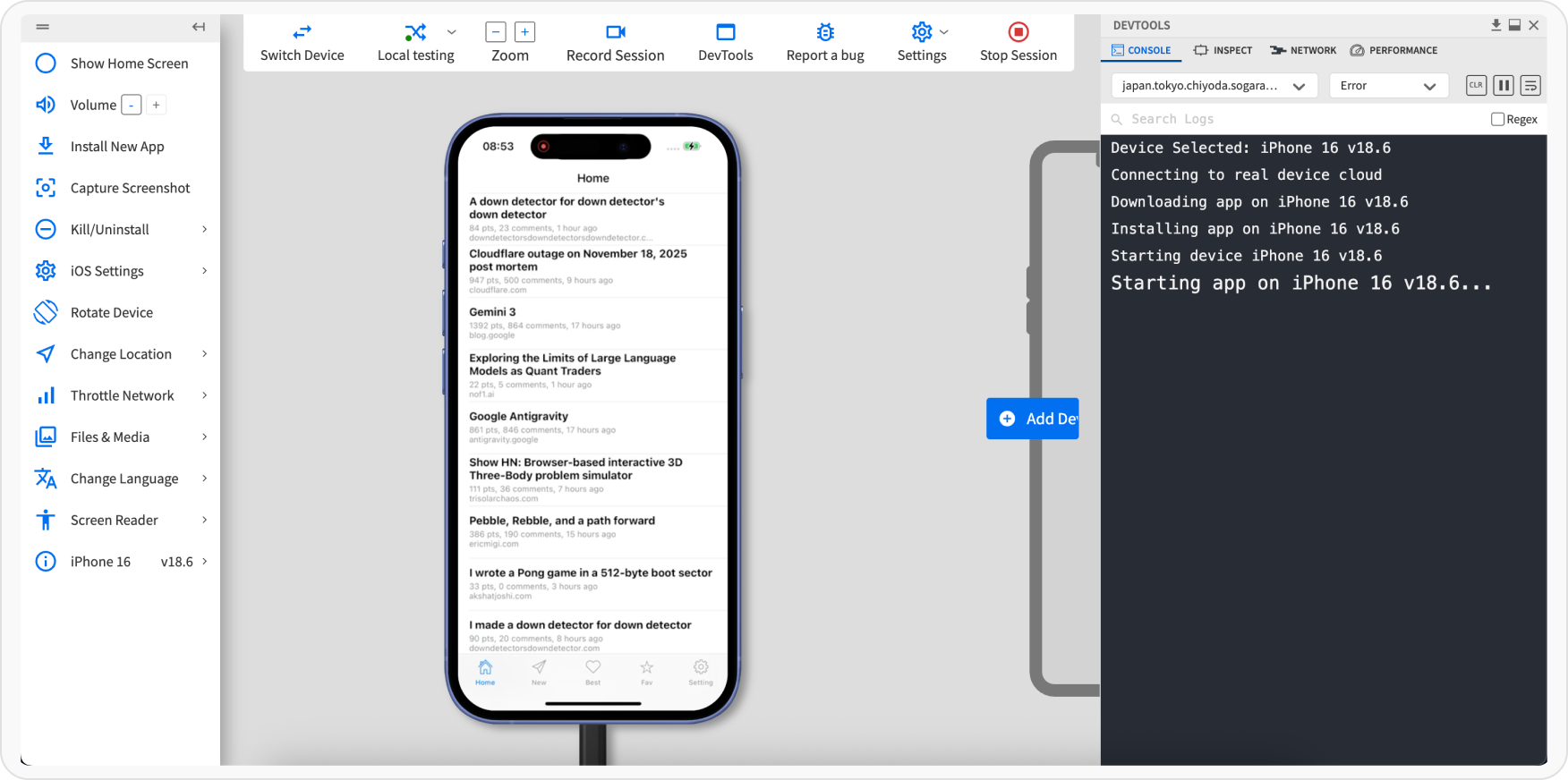
Log in to the App Live dashboard.
-
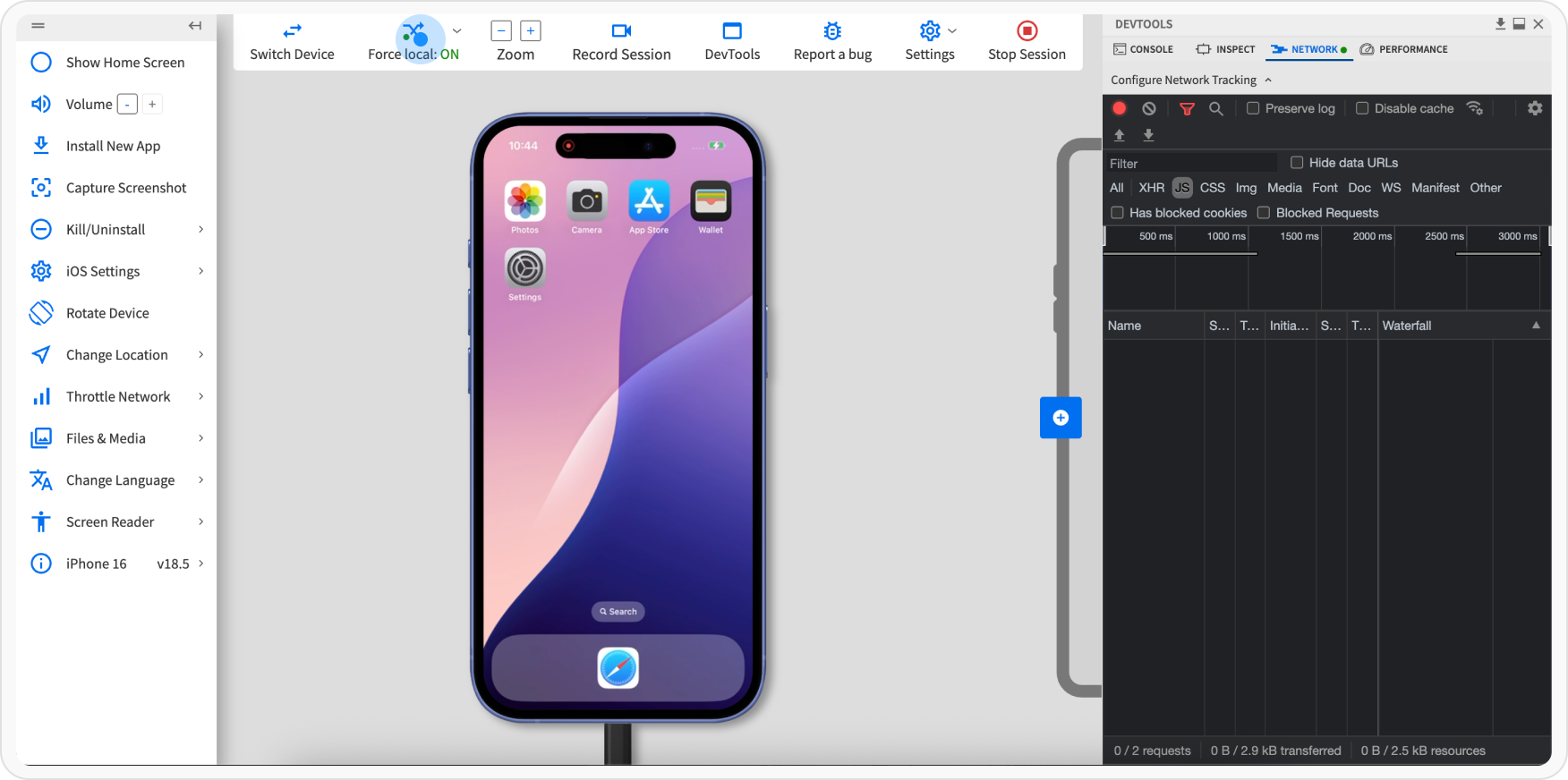
Verify that Force Local is On.
-
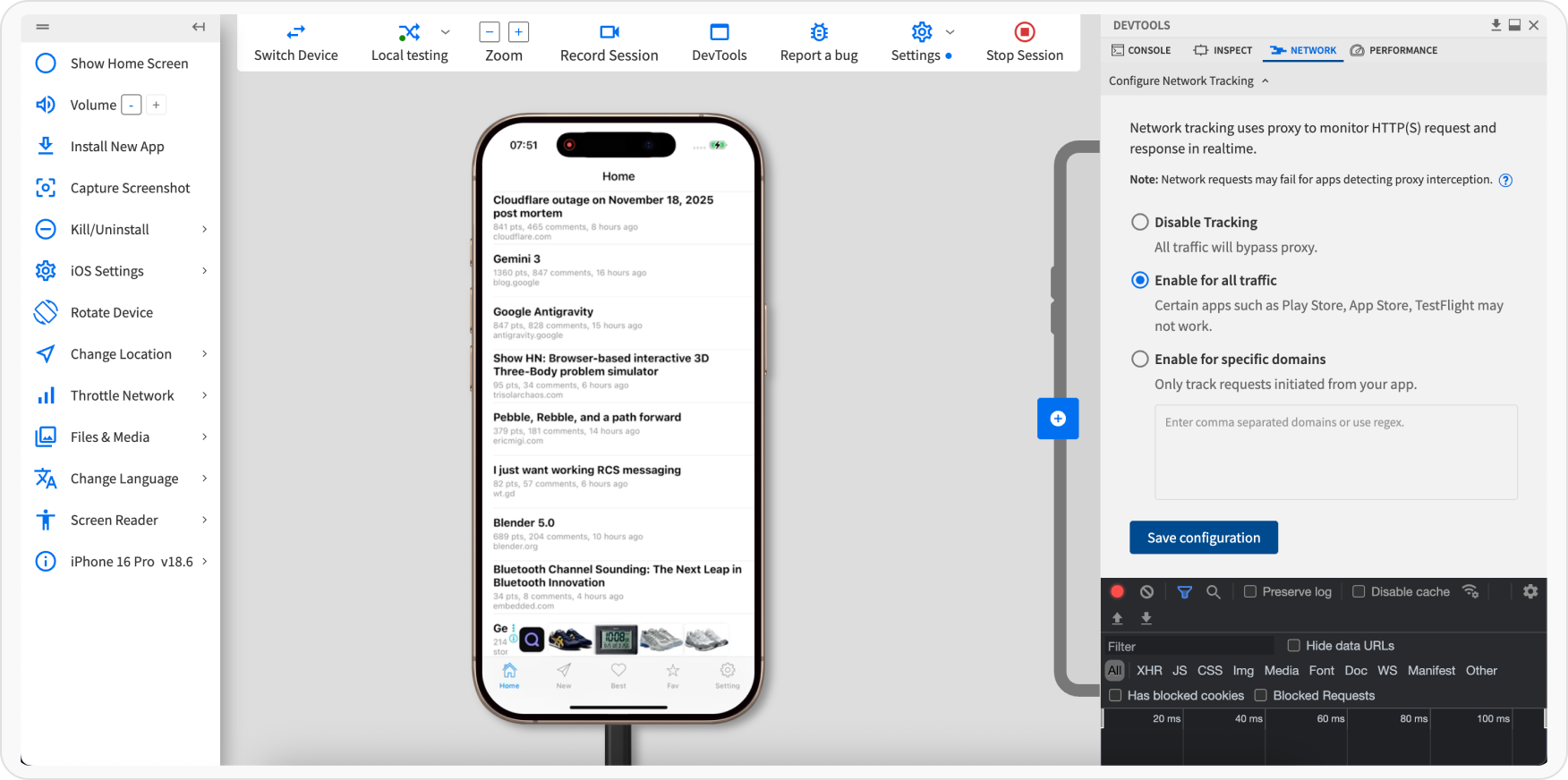
In Devtools, click the Network tab, and select the Enable for all traffic option. Click Apply.